Side Quest 10/Hometasking 3: Camouflage yourself and then reveal yourself
Due: 4/4
Tag: sq10
Please film with your camera in landscape mode. And embed your videos instead of merely linking to them.
ENG101, section 7. Spring 2020. Emory University.

Due: 4/4
Tag: sq10
Please film with your camera in landscape mode. And embed your videos instead of merely linking to them.




Students created new “Minecraft” servers for their college community or took to social media to invite classmates back to dormant realms, where players can freely build ecosystems or battle foes. There, students — left without real-world classrooms, dorms, and dining halls to socialize in — are spending time together virtually.
“It’s a fun way to, at the very least, interact with each other,” said Ralph Drake, a junior visual media arts major at Emerson who launched the school’s “Minecraft” server on March 13. “It’s collaborative at a time when we are so separated.”


We got Animal Crossing for my partner’s Nintendo Switch a few days ago and the whole family has been taking turns building up our little island paradise since then. My younger daughter keeps pronouncing that it’s the best way to distract herself with being trapped in quarantine. I’m seeing a lot of friends on my social media feeds also obsessing about the game right now.
Are any of you playing? What are your thoughts on the game? Interested in looking at it for a podcast episode?

Here’s some resources that might be useful for you as you think about your podcast episodes, or if you just want to play some games while you’re engaged in physical distancing.
I’m pretty sure I’m forgetting links I had been meaning to include here, so I’ll update this post as I come across more.

Hey everyone, excited to see the posts that have already gone up and the posts to come. Let’s get the video embedded directly into your posts themselves instead of just linking to videos, though it’s probably a good idea to just leave a direct link to the video in the post too, just in case.
It looks like so far most of the videos are hosted on Google Drive, so here is a quick tutorial focused on embedding a video from Google Drive. Other services down at the bottom of the post.
(Click to embiggen any of the screenshots below.)
Open the Google Drive hosted video you want to embed in a tab on your browser. Click on the “More Actions” button, which is usually just three dots, then select Embed item… from the pull-down menu.

A dialog box will pop up with the HTML code you will need to embed the item into your post. Copy and paste that snippet of code.
 In case you’re interested in understanding how the code works, it begins with a <iframe> tag that basically creates a small picture frame in your page, then it instructs the browser where to go and find the thing that will be displayed within that frame (that’s the src=”” part of the code [src means source]), adds a bit of information about how big the frame should be, and then closes the </iframe> tag.
Then switch over to your WordPress site with your with your post open in the editor. Click on the three little dots for “More tools and options” in the top right corner of your editor window.

Switch from the Visual editor the to the Code editor. The editor page will switch from the WYSIWYG (What you see is what you get) view where your editor looks pretty much the way it will display once you publish the post to a view that shows the underlying HTML code for your post.
 Paste the code into your post where you want the video to display.

Then you can switch back to the Code editor and you should get a preview of the video showing up in your post (sometimes it takes a moment to process as the frame has to load separately).
 That’s it! Publish or update your post and the video should show up within the post itself.
If your video is not on Google Drive but is instead in YouTube, you can do the same thing with embed code, or WordPress will automatically embed YouTube videos if you just paste the link.
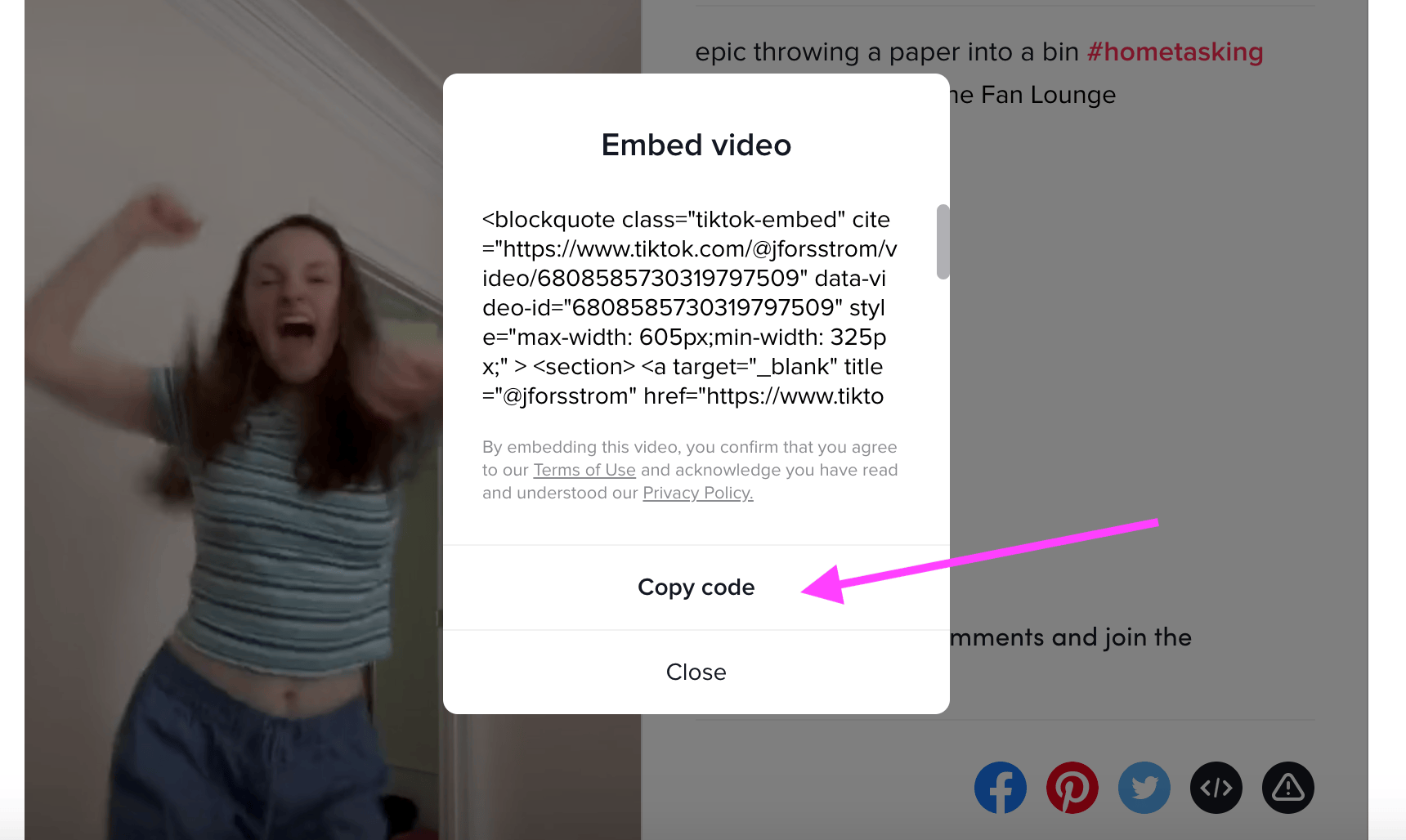
For TikTok, instead of just copying the link to the video, select “Get embed code” just above that link.

Copy and paste that code into your post following the instructions above.
If you don’t want to switch to the Code editor, in the visual editor you can also add a new block, but select a Video Block instead of just a text box.

Click on “Insert from URL” and then paste the link to the video (not the embed code from above, just the normal link) into that box.

Please don’t do this in my class (we’re small enough that it would be obvious) … and if you get caught doing this in any of your other classes, please don’t tell anyone that I’m the one who told you how to do it, but that said, there might be some situations where this little trick with Zoom’s virtual background could be very handy:
Tired:
Attending Zoom meetings.Wired:
Make the virtual background a video of you listening, loop it, and go nap.@AcademicChatter #phdchat pic.twitter.com/5OUaNy8jcB— Dani Beck (@_DaniBeck) March 19, 2020


